Recognizing the 10 signs your WordPress website has malware is crucial for maintaining your online presence and protecting your visitors. When your WordPress site becomes compromised, it can lead to devastating consequences including data breaches, revenue loss, and irreparable damage to your brand reputation.
WordPress powers over 40% of all websites on the internet, making it a prime target for cybercriminals seeking vulnerabilities to exploit. Understanding the warning signs of malware infection allows you to act quickly, minimizing damage and restoring your website security before significant harm occurs. Whether you’re managing a personal blog, an e-commerce store, or a corporate website, knowing these indicators can save you time, money, and countless headaches.
What Are The 10 Signs Your WordPress Website Has Malware
Malware, short for malicious software, refers to any code or program designed to infiltrate, damage, or gain unauthorized access to your WordPress website. When hackers successfully inject malware into your site, it can operate silently in the background, stealing sensitive information, redirecting traffic, or using your server resources for nefarious purposes. The 10 signs your WordPress website has malware represent the most common and recognizable symptoms that indicate your site has been compromised.
This matters significantly because malware infections don’t just affect your website’s functionality—they impact your visitors, your search engine rankings, and your bottom line. Google blacklists approximately 10,000 websites daily for malware or phishing attempts, and once blacklisted, your site can lose up to 95% of its organic traffic overnight. Your hosting provider may suspend your account, your customers may lose trust in your brand, and you could face legal liability if visitor data is compromised. The financial impact extends beyond immediate losses, as recovery costs, reputation management, and implementing proper malware protection measures can be substantial.
Common scenarios leading to WordPress malware infections include outdated plugins or themes, weak administrator passwords, nulled or pirated premium plugins, compromised hosting environments, and SQL injection attacks. Many website owners discover infections only after experiencing severe consequences like complete site takedowns or customer complaints. Hackers often target WordPress sites through automated bots that scan thousands of websites hourly, searching for known vulnerabilities. Once they find a weakness, malware deployment happens within seconds, establishing backdoors for continued access even after the initial vulnerability is patched.
How to Detect the Problem
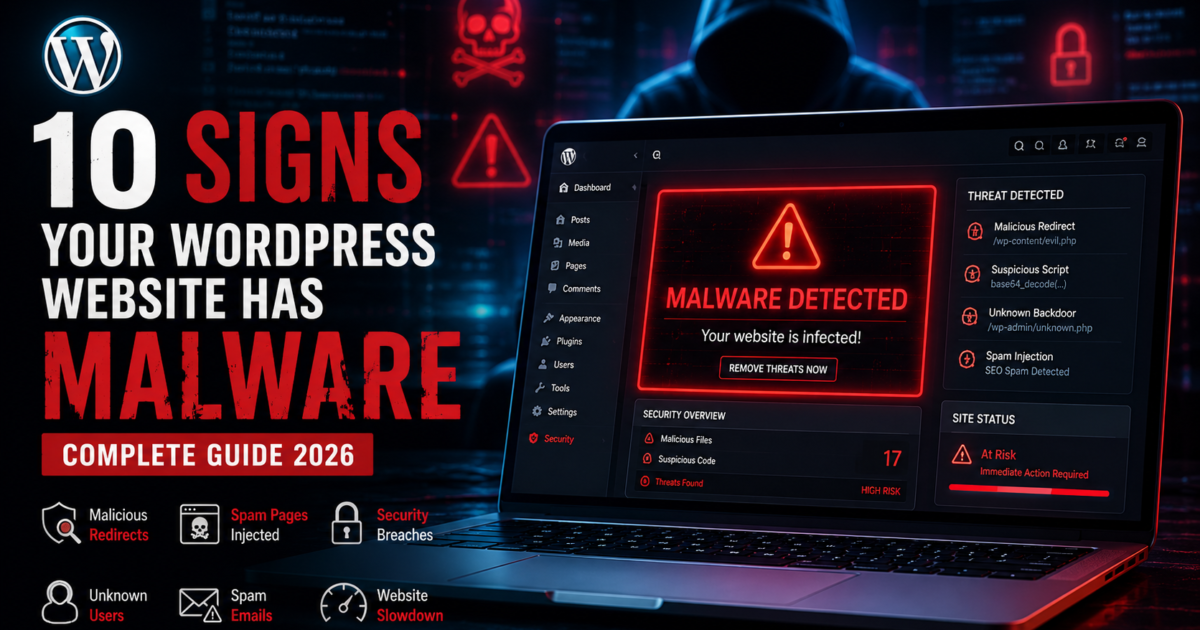
The first and most obvious warning sign is unexpected redirects, where your website automatically sends visitors to unfamiliar or suspicious websites. This typically indicates that malware has modified your core files or database to hijack traffic for profit. Another critical indicator is a dramatic drop in website performance—if your previously fast-loading site suddenly becomes sluggish or unresponsive, malware could be consuming your server resources for cryptocurrency mining or launching distributed denial-of-service (DDoS) attacks against other targets.
Additional warning signs include unfamiliar user accounts in your WordPress dashboard, unexpected pop-ups or advertisements appearing on your pages, Google Safe Browsing warnings alerting visitors that your site may harm their devices, and unexplained changes to your website content. You may also notice suspicious files in your WordPress directories, unauthorized emails being sent from your domain, increased bandwidth usage without corresponding traffic growth, and frequent crashes or error messages. Security warnings from your hosting provider represent another unmistakable sign that something is wrong with your online safety posture.
For diagnostic purposes, several security tools can help identify malware infections. Wordfence Security offers comprehensive scanning capabilities that check your core files, themes, and plugins against the official WordPress repository to detect modifications. Sucuri SiteCheck provides free external scanning to identify malware, blacklist status, and website errors. MalCare Security Scanner uses advanced algorithms to detect even the most sophisticated malware variants. These tools work by comparing your files against known-good versions, analyzing code for suspicious patterns, and checking your site against malware databases. Manual checks should include reviewing your .htaccess file for unauthorized redirects, examining your wp-config.php file for suspicious code, checking your database for unfamiliar administrator accounts, and using FTP to look for recently modified files that you didn’t change.
Step-by-Step Fix Guide
Step 1: Isolate and Assess the Infection – Immediately take your website offline or put it in maintenance mode to prevent further damage and protect your visitors from potential cyber threats. Change all passwords associated with your website, including WordPress admin accounts, FTP credentials, database passwords, and hosting control panel access. Document everything you discover about the infection, including when you first noticed problems, what symptoms appeared, and which files or areas seem affected. Run a complete backup of your infected site before making any changes, as you’ll need this for forensic analysis and as a reference point during the cleaning process.
Step 2: Identify and Remove Malicious Code – Use reputable security tools to scan your entire WordPress installation, identifying infected files and malicious code injections. Compare your core WordPress files, active theme files, and plugin files against clean versions from official sources. Remove any files that don’t belong, paying special attention to unusual .php files in your uploads directory, base64-encoded strings in your code, and eval() functions used suspiciously. Check your database tables for injected malicious scripts, particularly in the wp_posts and wp_options tables where hackers commonly hide code. Modern API integrations and automation architecture can help streamline this detection process by automatically flagging suspicious patterns.
Step 3: Restore, Harden, and Monitor – After removing all traces of malware, reinstall WordPress core files, update all themes and plugins to their latest versions, and verify that all malware protection measures are functioning correctly. Implement security hardening measures including two-factor authentication, file integrity monitoring, and web application firewall (WAF) protection. Request a review from Google if your site was blacklisted, submit your site to malware scanning services to verify it’s clean, and monitor your website closely over the following weeks for any signs of reinfection. Configure regular automated backups so you’ll have clean restore points if future infections occur.
Best Tools and Solutions
Free tools offer substantial value for website security, particularly for small websites and blogs with limited budgets. Wordfence Security provides comprehensive malware scanning, firewall protection, and security hardening features at no cost. The free version scans your site for known malware signatures and compares your core files against the WordPress repository. Sucuri SiteCheck offers external scanning to identify malware, blacklist status, and website errors without requiring installation. iThemes Security Free helps harden your WordPress configuration by addressing common vulnerabilities and implementing security best practices.
Premium options deliver advanced protection features, faster response times, and professional support when you need it most. Wordfence Premium ($119/year) includes real-time threat intelligence, IP blacklist blocking, and priority support. Sucuri Website Security Platform ($199.99-$499.99/year) provides malware removal services, DDoS protection, and CDN acceleration. MalCare ($99-$299/year) offers automated malware removal, advanced firewall protection, and staging environment management. These premium solutions justify their cost through guaranteed cleanup services, reduced downtime, and comprehensive protection against emerging threats.
| Security Tool | Type | Best Feature | Price Range |
|---|---|---|---|
| Wordfence | Plugin | Real-time threat defense | Free – $119/year |
| Sucuri | Cloud-based | Malware removal guarantee | $199.99 – $499.99/year |
| MalCare | Plugin | Automated cleaning | $99 – $299/year |
| iThemes Security | Plugin | Security hardening | Free – $199/year |
Pro Tip: Never rely on a single security tool for complete protection. Implement a layered security approach combining malware scanning, firewall protection, backup solutions, and activity monitoring. This defense-in-depth strategy ensures that if one security measure fails, others will catch threats before they cause damage.
Prevention Best Practices
Regular security scans form the foundation of proactive malware protection for your WordPress website. Schedule automated daily scans using reputable security tools that check for file modifications, malware signatures, and suspicious database entries. Weekly deep scans should examine every file in your WordPress installation, compare checksums against official repositories, and analyze code for obfuscated or encoded content that could hide malicious functions. Monthly comprehensive audits should include external vulnerability scanning, penetration testing, and review of user access logs to identify potential security weaknesses before attackers exploit them.
Security hardening transforms your WordPress site from an easy target into a fortified platform that resists common attack vectors. Essential hardening measures include limiting login attempts to prevent brute force attacks, implementing two-factor authentication for all administrator accounts, disabling file editing from the WordPress dashboard, restricting PHP file execution in upload directories, and keeping WordPress core, themes, and plugins updated to patch known vulnerabilities. Additional measures include changing default database prefixes, modifying security keys in wp-config.php, disabling XML-RPC if not needed, and implementing SSL certificates to encrypt data transmission. Configure your .htaccess file to protect sensitive files, disable directory browsing, and block access to wp-config.php and other critical configuration files.
Continuous monitoring provides early warning when something goes wrong, allowing you to respond before minor issues escalate into major security incidents. Implement file integrity monitoring that alerts you whenever files change unexpectedly, set up uptime monitoring to detect when your site goes offline, and configure server resource monitoring to identify unusual CPU or bandwidth consumption. Review your security logs regularly for failed login attempts, suspicious user behavior, and unauthorized file modifications. Consider implementing a security information and event management (SIEM) solution that aggregates logs from multiple sources, applies correlation rules to identify attack patterns, and generates alerts for security events requiring immediate attention. Many modern security platforms offer dashboards that provide real-time visibility into your website security posture.
Conclusion
Understanding and recognizing the 10 signs your WordPress website has malware empowers you to protect your online presence from the devastating consequences of cyber threats. By implementing the detection methods, following the step-by-step fix guide, utilizing appropriate security tools, and adopting prevention best practices outlined in this guide, you can significantly reduce your risk of malware infections and respond effectively when attacks occur.
Website security requires ongoing attention and commitment rather than one-time fixes. The threat landscape constantly evolves as hackers develop new techniques and discover fresh vulnerabilities to exploit. Your malware protection strategy must evolve accordingly, incorporating regular updates, continuous monitoring, and proactive hardening measures that stay ahead of emerging threats.
Take action today to assess your WordPress website’s security posture and implement comprehensive protection measures. Visit Smart Malware Scan for a free website security scan that identifies vulnerabilities, detects existing malware infections, and provides actionable recommendations for improving your online safety. Don’t wait until your site is compromised—prevention is always easier and less expensive than recovery.
Frequently Asked Questions
What are the 10 signs your WordPress website has malware?
The 10 signs include unexpected redirects to unfamiliar websites, dramatic performance slowdowns, unfamiliar user accounts in your dashboard, unauthorized pop-ups or ads, Google Safe Browsing warnings, suspicious files in directories, unexpected content changes, unauthorized emails from your domain, increased bandwidth usage, and frequent crashes or errors. Each sign indicates different types of malware infections requiring immediate attention.
How do I detect the 10 signs your WordPress website has malware?
Detection involves using security scanning tools like Wordfence or Sucuri to analyze your files and database for malicious code, monitoring your Google Search Console for security warnings, checking your analytics for unusual traffic patterns, and manually inspecting critical files like .htaccess and wp-config.php. Regular security audits help identify infections early before they cause significant damage.
Can free tools handle the 10 signs your WordPress website has malware?
Free security tools can detect many malware infections and help with basic cleanup, but they typically lack advanced features like automated malware removal, real-time threat intelligence, and guaranteed cleanup services. For complex infections or business-critical websites, premium tools offer faster resolution, professional support, and comprehensive protection worth the investment.
How long does it take to fix the 10 signs your WordPress website has malware?
Simple malware infections can be cleaned in 2-4 hours using automated tools, while complex infections involving multiple backdoors, obfuscated code, or database compromises may require 8-24 hours or more. The timeline depends on infection severity, your technical expertise, and whether you use manual cleaning methods or professional services.
How do I prevent the 10 signs your WordPress website has malware in the future?
Prevention requires implementing layered security including regular automated scans, keeping WordPress core and all plugins updated, using strong passwords with two-factor authentication, installing a web application firewall, maintaining regular backups, and hardening your WordPress configuration. Continuous monitoring and proactive security measures significantly reduce your risk of future infections.